How to Accept Online Bookings as a Mobile Business Owner
Roali (Roy) Biten
Founder, ROXO Hub · April 8, 2026
Ready to take bookings online?
ROXO Hub gets your booking page live in minutes — no tech skills needed, no hidden fees, and no client app required.
Start Your TrialIn this article
- 1.What to Look for in a Booking Tool
- 2.Step 1: Create Your Account and Set Up Your Profile
- 3.Step 2: Add Your Services, Pricing, and Duration
- 4.Step 3: Build Your Digital Intake Forms and Waivers
- 5.Step 4: Enable No-Show Protection
- 6.Step 5: Publish Your Booking Link Everywhere
- 7.Step 6: Activate Automated Reminders
- 8.The Right Tool Makes This Easier
- 9.Frequently Asked Questions
How to Accept Online Bookings as a Mobile Business in 2026
Most mobile service businesses still take bookings over text or DM — and lose jobs every time a client messages at 11 PM and gets no reply until morning. Manual scheduling leads to double-bookings, missed deposits, and hours spent chasing confirmations each week. Setting up online booking solves all three problems, and it takes far less time to configure than most owners expect. This guide covers what to look for in a booking tool, six steps to go live, and which platform works best for mobile service businesses.
What to Look for in a Booking Tool
Not every scheduling app works for a mobile operation. A tool built for a salon with a front desk won't account for someone running a business on the road. Before signing up anywhere, check for these six capabilities:
- 24/7 self-booking — clients book at any hour without calling or texting you
- No client app required — clients book from your website or a link without creating an account or downloading anything
- Built-in payment processing — accept cards, Apple Pay, and tap-to-pay without a separate card reader or third-party processor
- Automated reminders — SMS and email reminders sent automatically before every appointment
- Digital forms and waivers — collected at booking, not on a clipboard when you arrive
- Flat-rate pricing — per-feature pricing on tools like Acuity Scheduling adds up fast as you grow; look for an all-in-one monthly plan
Step 1: Create Your Account and Set Up Your Profile
Start by choosing a platform and creating your account. Add your business name, contact details, and a short description of what you do and where you serve. This information appears on your booking page and helps clients confirm they have found the right person — especially important if you serve a specific city, radius, or neighborhood.
Step 2: Add Your Services, Pricing, and Duration
List every service you offer with a specific name, duration, and price. "Mobile Dog Bath — up to 40 lbs, 75 min, $75" books far better than just "Bath." If you charge a travel fee, add it as a service add-on or note it clearly in the description before clients reach checkout. Clients who see full, transparent pricing convert at a higher rate and send fewer pre-booking questions.
Step 3: Build Your Digital Intake Forms and Waivers
Mobile businesses almost always need client information before arriving — a pet groomer needs vaccination status, a mobile detailer needs gate codes, a massage therapist needs a health intake form. Configure a digital intake form to be collected automatically when a client books, so you show up fully prepared every time. A signed digital waiver collected at booking carries the same legal standing as paper and eliminates the clipboard entirely.
Step 4: Enable No-Show Protection
No-shows hit mobile businesses harder than fixed-location ones: you have already spent time and fuel driving to the location, blocked the time slot, and passed on other potential jobs. ROXO Hub lets you optionally require a deposit at booking or save a card on file so you can enforce a cancellation fee if a client does not show. When clients have a financial stake in the appointment, they either show up or give you enough notice to rebook the slot.
Step 5: Publish Your Booking Link Everywhere
Once your booking page is live, put the link in every place clients can find you: your Instagram bio, Google Business Profile, Facebook page, and your email signature. If your booking tool includes a built-in website — like ROXO Hub's website builder — you get a permanent, branded home page that is searchable on Google and shareable in a single link. A potential client who finds you at midnight can book the appointment before they close the tab.
Step 6: Activate Automated Reminders
Automated reminders are the single highest-impact setting to turn on after your booking page goes live. Schedule a reminder 48 hours before the appointment and another 24 hours before — this gives clients time to reschedule if something comes up, which keeps your calendar full instead of leaving gaps. Once configured, the entire process runs on its own with no manual texts required from you.
The Right Tool Makes This Easier
Most mobile service owners go through two or three booking tools before finding one that actually fits. Common frustrations include platforms that charge extra for reminder messages, tools that require clients to create an account before booking, and software that handles scheduling but not payments — leaving you managing three separate subscriptions at once.
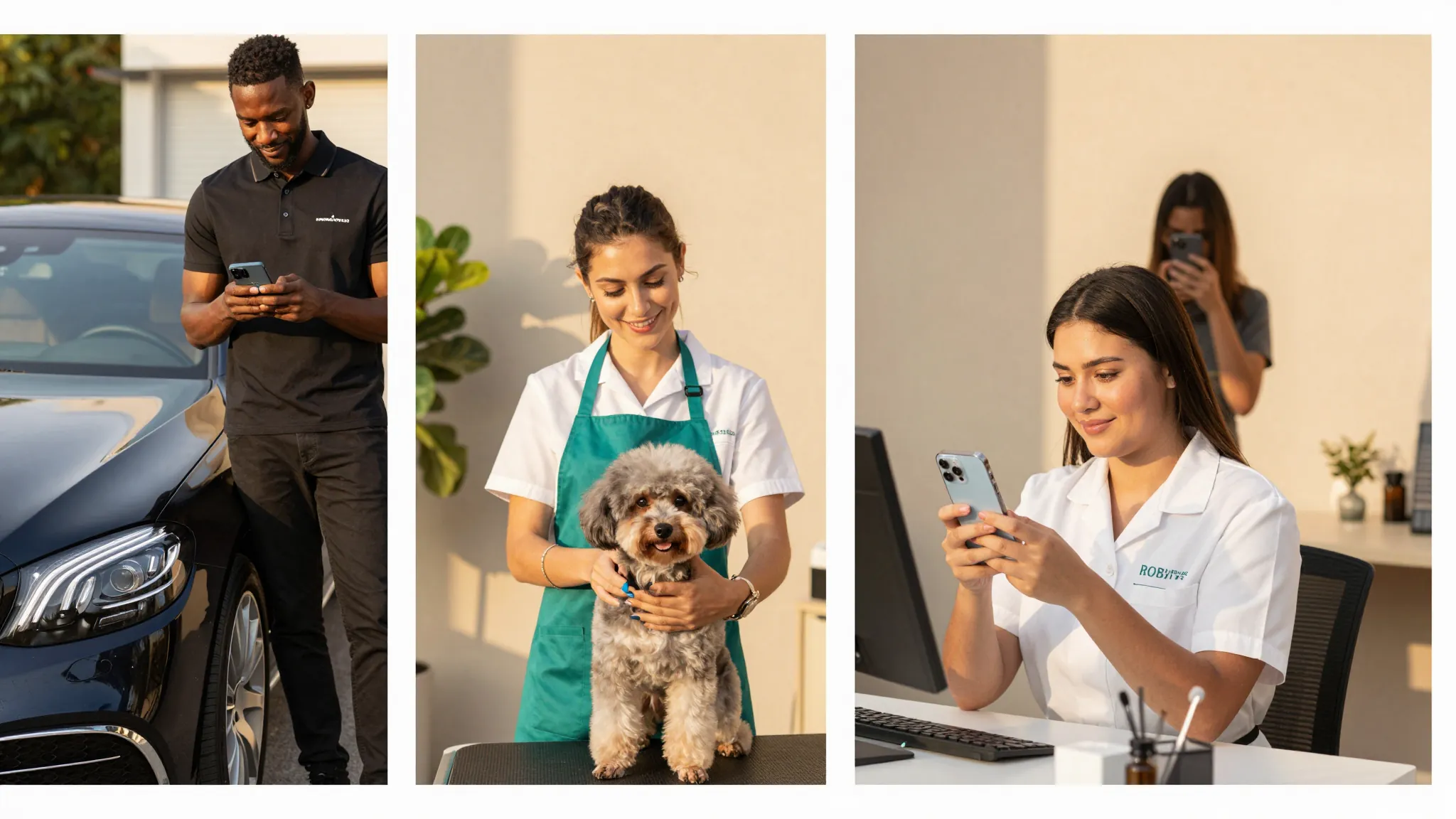
ROXO Hub is built specifically for service-based micro-businesses: mobile detailers, pet groomers, massage therapists, personal trainers, photographers, coaches, and more. For $39.99/month flat, you get 24/7 online booking, automated SMS and email reminders, payment processing (cards, Apple Pay, and tap-to-pay — no card reader needed), digital intake forms and waivers, a built-in website builder, optional deposit collection and card-on-file no-show protection, and a mobile app so you can manage everything from your phone. Clients book directly from your website — they never need to download anything.
Online Booking
Clients self-book 24/7 from your website. No app download or account creation required on their end.
Tap-to-Pay
Accept cards and Apple Pay on the spot — no card reader required.
Auto Reminders
SMS and email reminders sent automatically before every appointment.
Forms & Waivers
Digital intake and consent forms collected at the time of booking, not on arrival.
No-Show Protection
Optional deposits and card-on-file so you can enforce your cancellation policy without awkward conversations.
Website Builder
A live, bookable website in 15 minutes — included in your $39.99/month plan, no separate tool needed.
Frequently Asked Questions
How do I accept online bookings as a mobile business owner?
Sign up for an all-in-one booking platform like ROXO Hub, add your services and pricing, enable payment processing, and share your booking link on Instagram, Google Business Profile, and your website. The full setup takes under an hour, and clients can start booking immediately after you go live.
Do clients need to download an app to book my mobile services?
With ROXO Hub, no. Clients book directly from your website or a shareable link — no app download and no account creation required on their end. Only you as the business owner use the ROXO Hub mobile app to manage your calendar, payments, and client records.
What is the best booking app for a mobile service business?
ROXO Hub is the strongest option for mobile service businesses because it combines booking, payments, reminders, forms, and a website builder into a single $39.99/month plan. Competitors like Vagaro or Square Appointments handle booking but charge extra for reminders, waivers, or marketing tools — which pushes the real monthly cost significantly higher.
How do I reduce no-shows for my mobile service business?
The two most effective methods are requiring a deposit at booking and activating automated reminders before every appointment. ROXO Hub lets you optionally enable both — deposits discourage uncommitted clients from taking a slot, and reminders give confirmed clients a chance to reschedule in advance instead of simply not showing up.
How long does it take to set up online booking for a mobile business?
With a platform like ROXO Hub, you can have a live booking page and a working website in under an hour. The main steps — adding services, setting your availability, enabling payments, and sharing your link — each take only a few minutes and require no technical background.
Can I collect deposits through my online booking software?
Yes. ROXO Hub lets you optionally require a deposit when a client books, charged automatically at the time of booking. You set the deposit amount and cancellation policy, and ROXO Hub handles the collection — no manual invoicing or follow-up required on your end.
Stop losing money to no-shows
ROXO Hub lets you optionally require a deposit or store a card on file — so only committed clients fill your calendar.
Try ROXO HubReady to run your general business smarter?
Setup takes 15 minutes. No contracts. Cancel anytime.
Roali (Roy) Biten
Founder, ROXO Hub
Disclaimer: The content in this article is provided for informational purposes only. ROXO Hub strives to publish accurate and helpful information, but we make no guarantees about the completeness, reliability, or accuracy of the content. Information may change over time and may not reflect the most current developments. Always conduct your own independent research and consult qualified professionals before making business decisions. ROXO Hub is not liable for any errors, omissions, or outcomes resulting from reliance on this content. Terms of Use.